The BIGGEST Dashr app update to date has just dropped!
We have combined the Dashr coach app, the Dashr Player Profile app, and the Online Dashboard all into one single app.
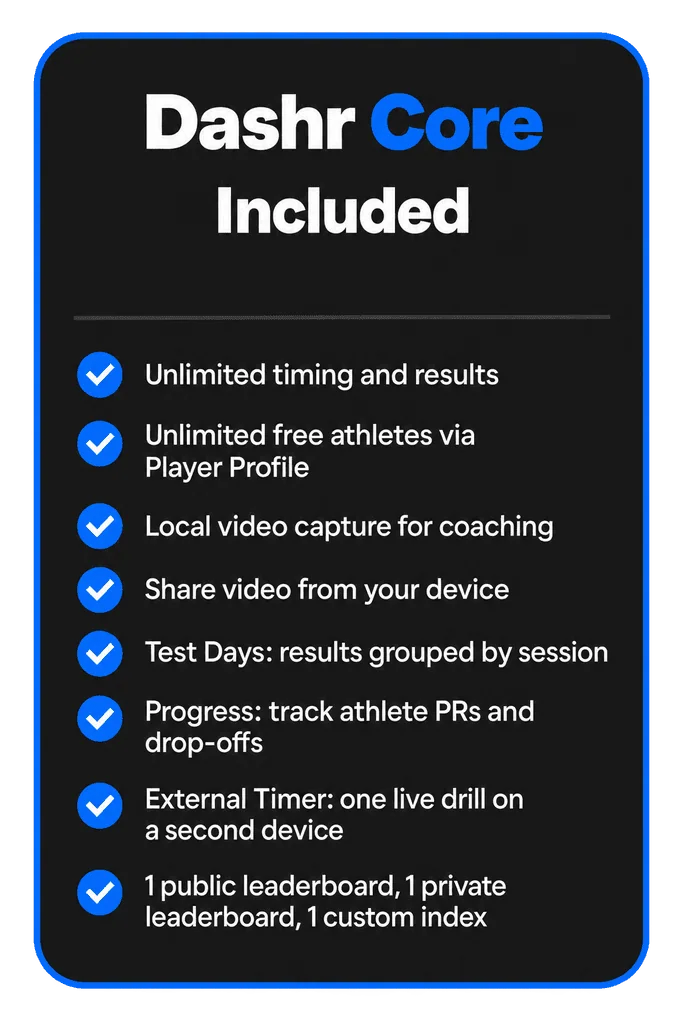
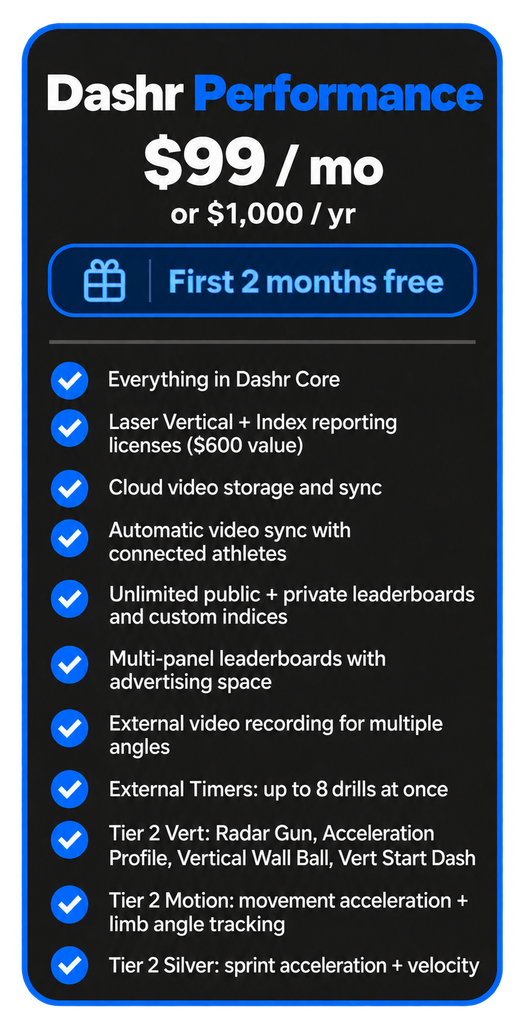
Coaches have access to more drills and features than ever. Create rosters, connect with athletes, run reports, set-up external cameras, create custom leaderboards for live viewing, and much more.
Athletes can instantly access their results, videos, reports, rankings, and recruiting profile.
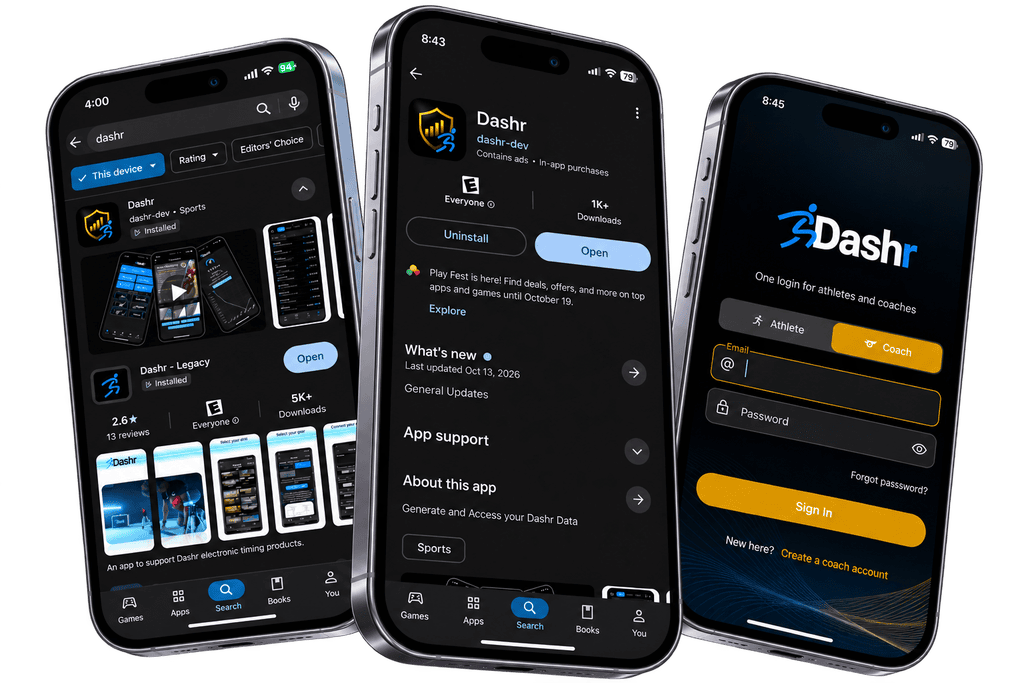
To access the app you will need to install the new “Dashr” app on your device. Your existing app is now called “Dashr Legacy” and will continue to work like you are used to. Get the new app for new features moving forward.
Here is a list of some of our new features:
1. Auto Registration
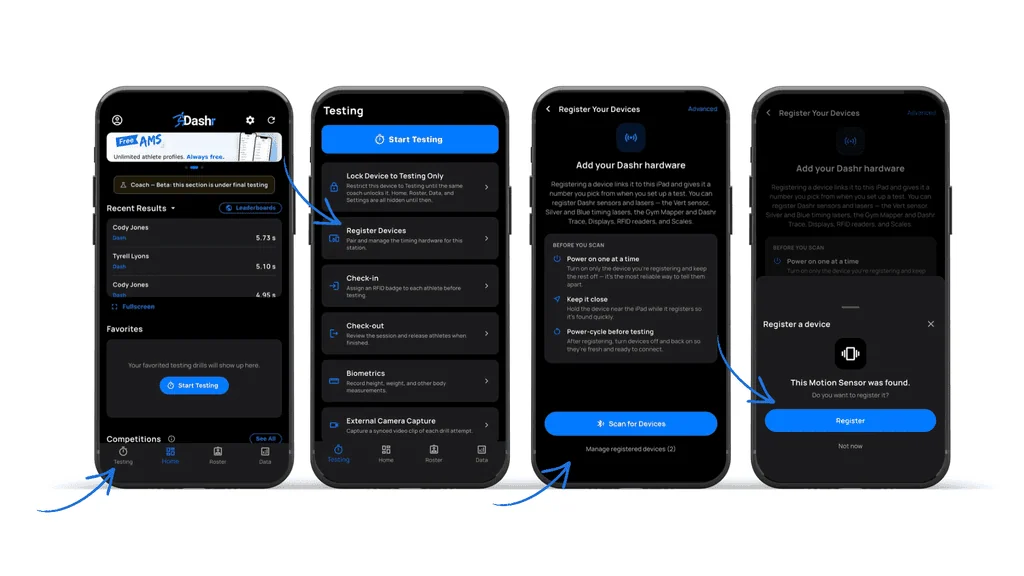
From the Home page, go to the Testing tab. Select Register Devices. Tap Scan for Devices. Select the devices you want to register. Once selected, complete the registration.
2. Drill set-up visualization
From the Home screen, go to the Testing tab. Select Start Testing. Choose the drill you want to run. Select whether you’re using Silver or Blue lasers. Choose the first laser you want to connect by selecting the device ID/name you assigned when registering it. Continue connecting the remaining lasers needed for your drill. Once connected, you’re ready to begin testing.
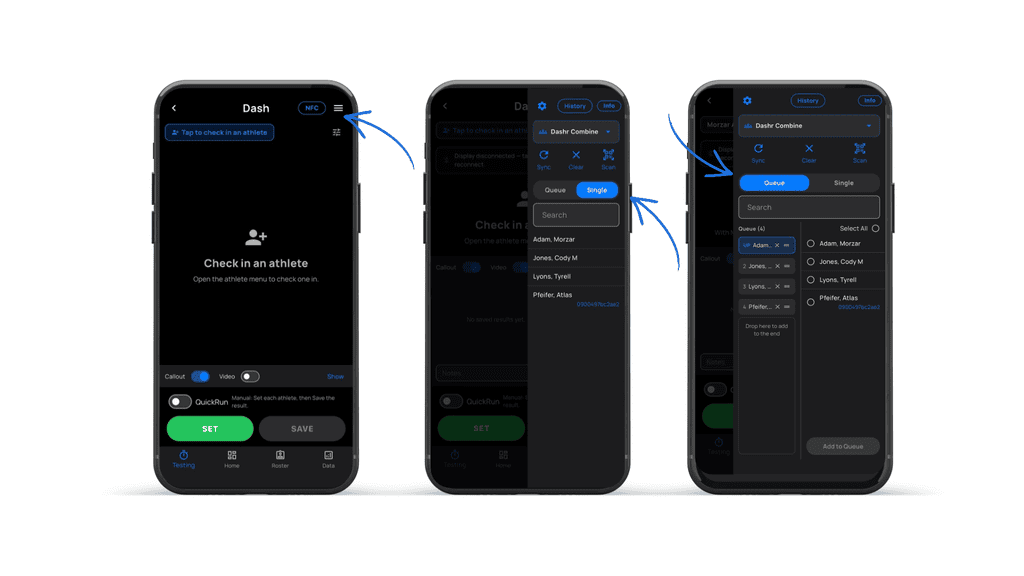
3. Queue option in drills
Once you’re inside your drill, you can choose how you want to manage athletes during testing.
You have two options:
- Check In a Single Athlete – Select one athlete to test individually.
- Queue Multiple Athletes – Add several athletes to a queue to keep testing moving efficiently from one athlete to the next.
4. Saved Configuration
Once you’ve run a drill, Dashr will remember your previous setup, making it faster to get started the next time.
Your drill configuration and the lasers used will be saved automatically. The next time you select that drill, your previous setup will be ready to use without having to configure everything again.
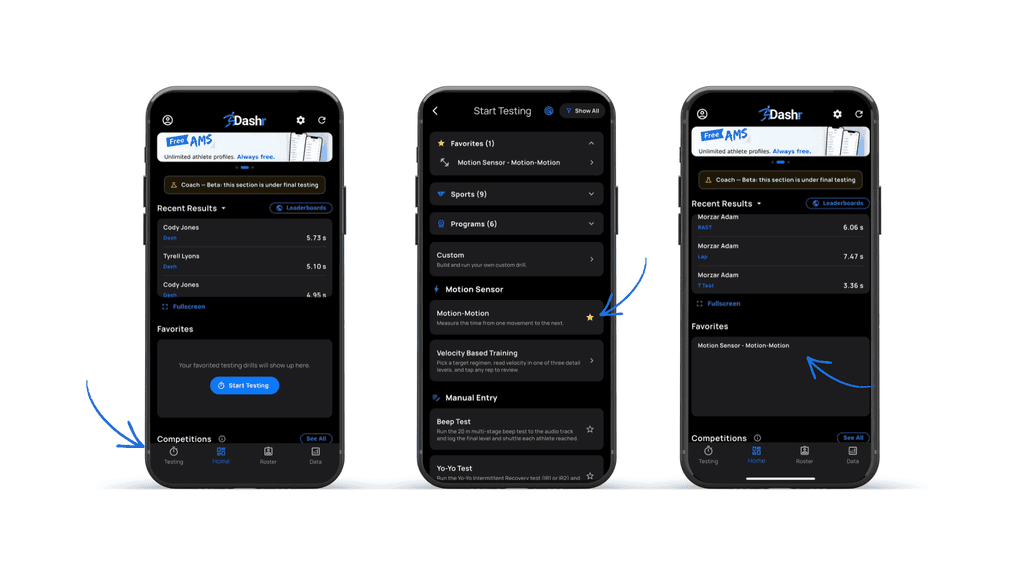
5. Favorite Drill
Get to your most-used drills faster by adding them to your Favorites.
- Find the drill you want to favorite.
- Select the star icon next to the drill.
- That drill will now appear directly on your Home screen for quick access.
- To remove it from your Home screen, simply select the star again to deselect it.
Your favorite drills will remain on the Home screen until you remove them.
6. Light and Dark Mode
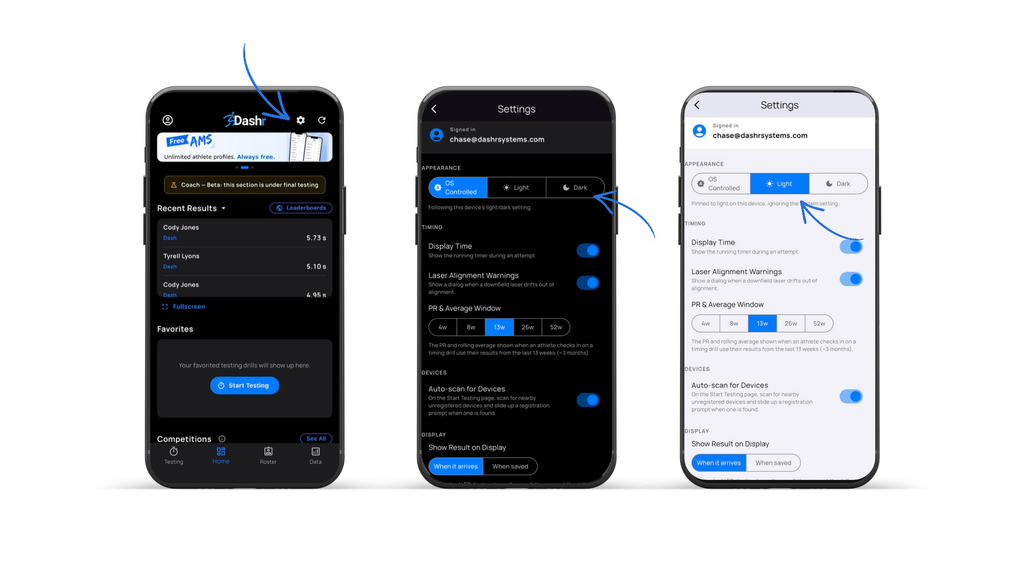
You now have the ability to customize the look of your Dashr app with Light or Dark Mode.
- Go to Settings.
- Find the Light/Dark Mode option.
- Toggle between the two themes and choose the look you prefer.
7. Changing Display Color
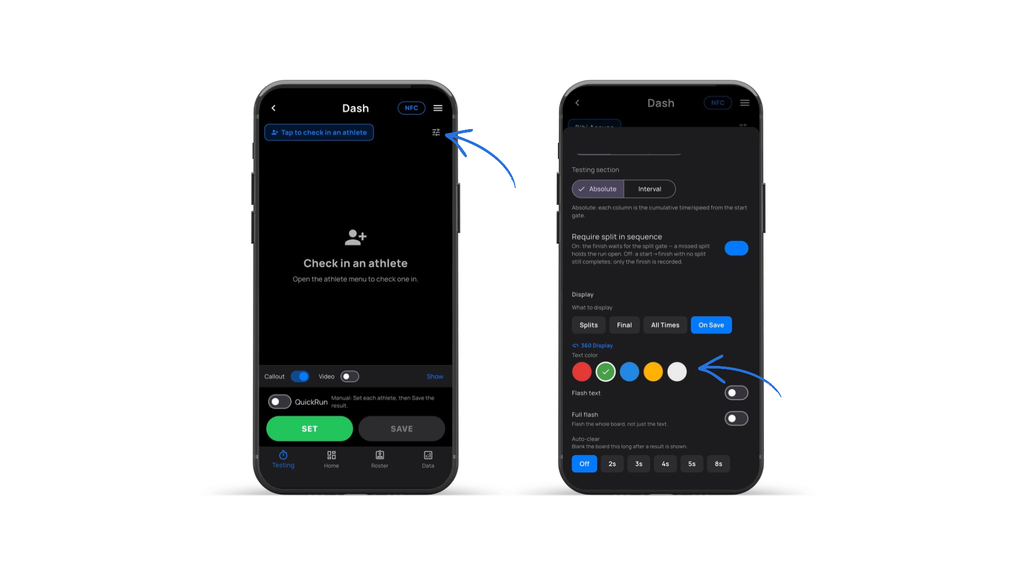
You now have the ability to change the colors shown on your Dashr 360 Displays to match your preference or testing setup.
- Once you’re inside your drill, go to Settings.
- Find the 360 Display Color option.
- Select the color you prefer.
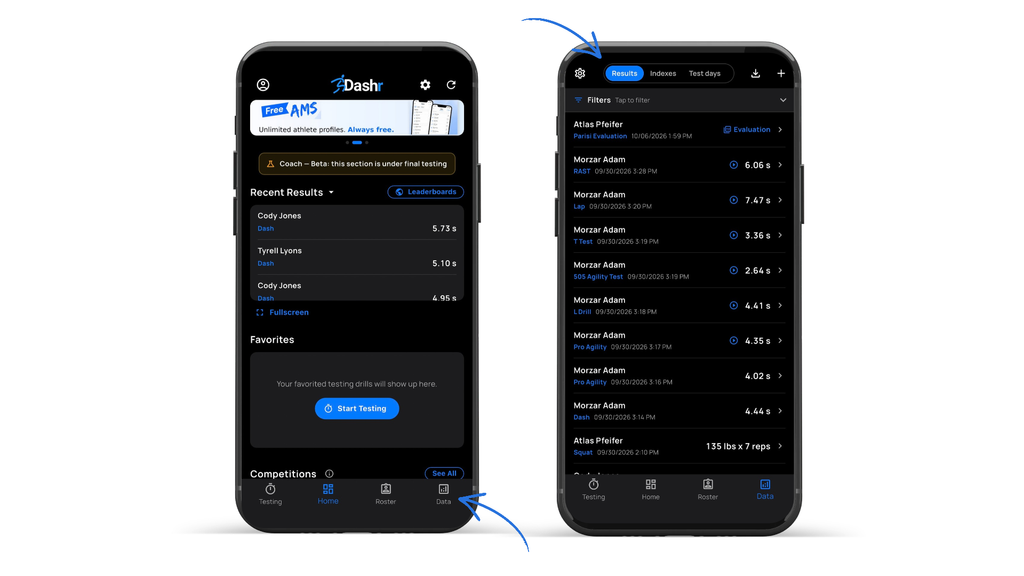
8. View Results
All of your testing results are stored in one place for easy access.
- Go to the Data tab.
- Your completed testing results will appear here.
- Select an individual result to view the data.
- From each result, you can save or share the information directly from the app.
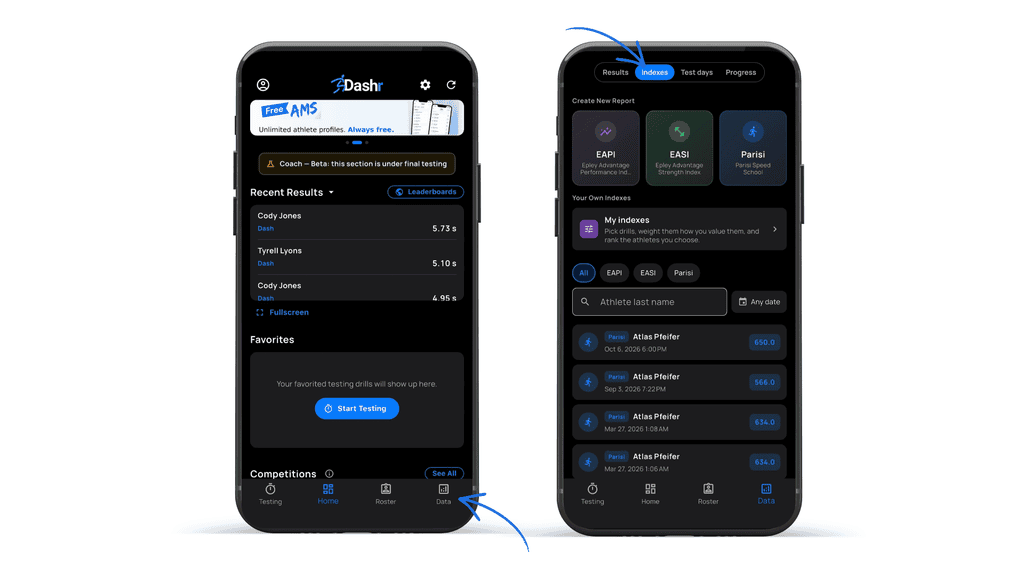
9. View or Create Index
You can easily create and manage your athlete indexes directly from the Data tab.
- From the Home screen, go to the Data tab.
- Select Indexes.
- From here, you can view your existing indexes or create a new index.
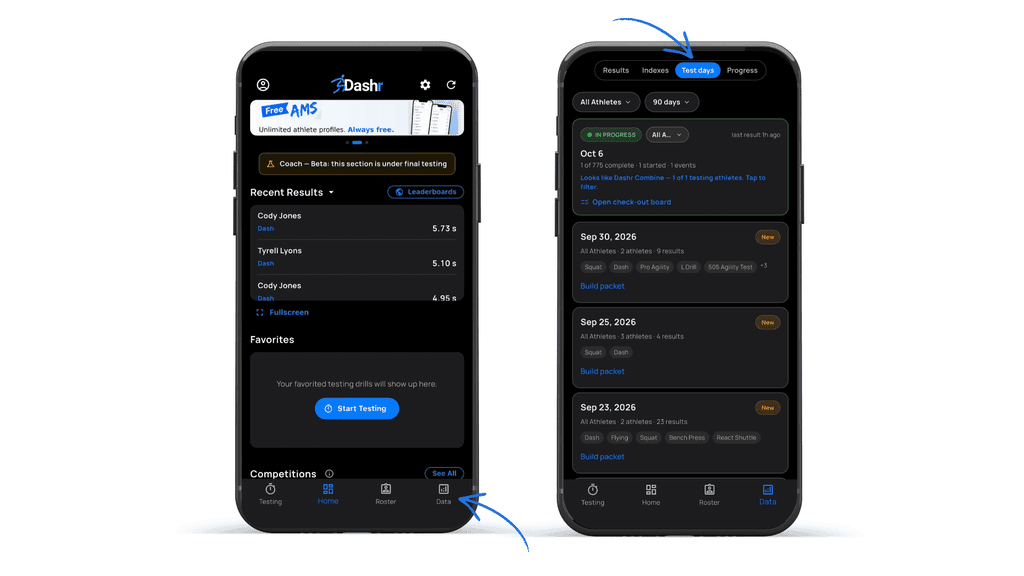
10. Test Days
Easily look back at when your athletes and rosters were tested.
- Go to the Data tab.
- Select Test Days.
- From here, you can view when each roster or individual athlete was tested.
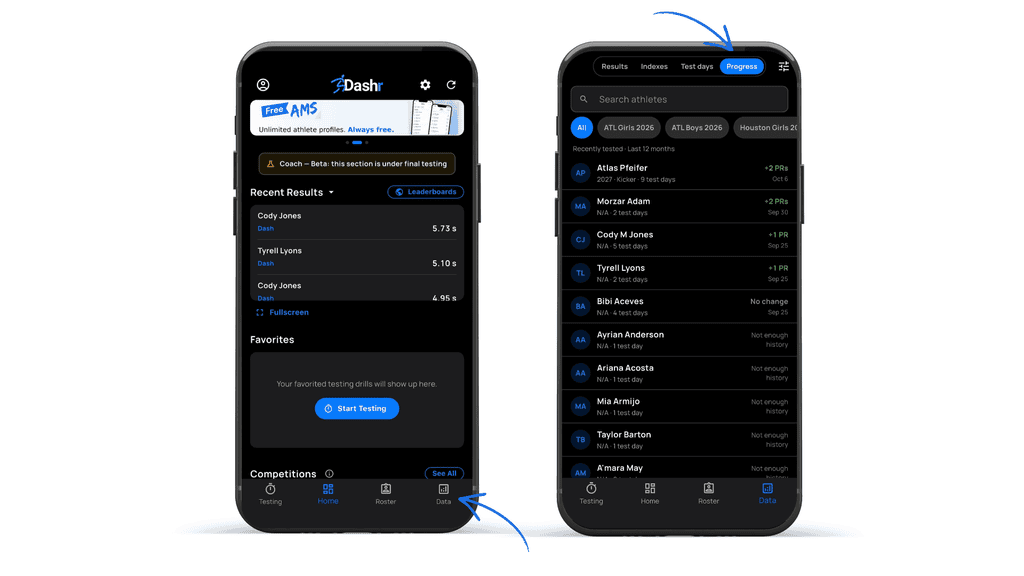
11. Progress
Track athlete and roster performance over time directly in the Dashr app.
- Go to the Data tab.
- Select Progress.
- Choose an individual athlete or roster.
- View their testing progress and performance changes over time.
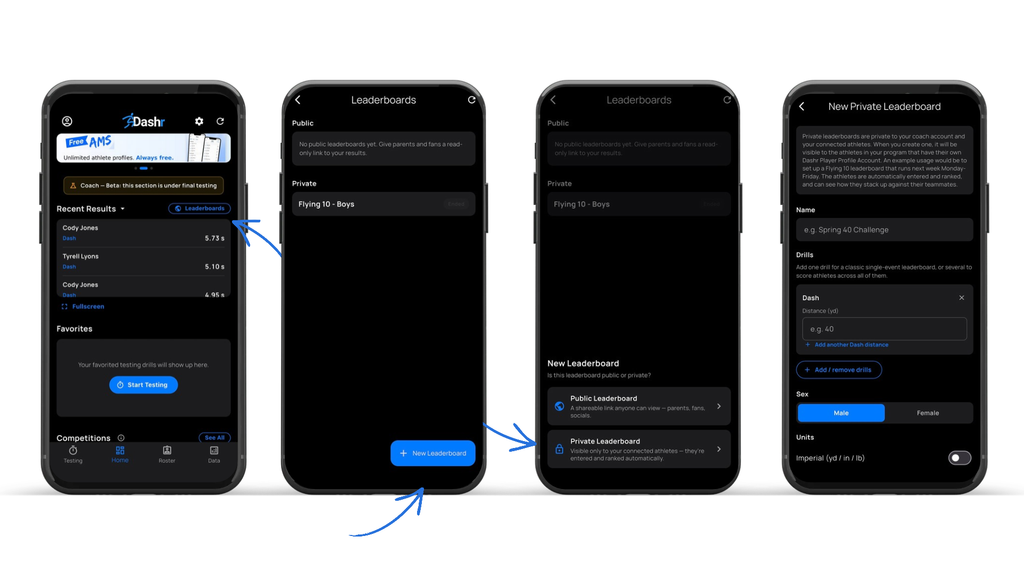
12. Create a Competition
Create a leaderboard to turn your testing into a competition and compare athlete performance.
- From the Home screen, go to Leaderboards next to Recent Results.
- Select New Leaderboard.
- Choose whether you want the leaderboard to be Private or Public.
- Select the roster you want to include.
- Choose the drill(s) you want included in the competition.
- Create the leaderboard and start tracking results.
13. External video capture
You can now use a second device to capture another angle of your testing while displaying the live time.
- Log in to the same Coach account on a second device.
- Go to the Testing tab.
- Scroll down and select External Video Capture.
- Choose the live drill you are currently running.
- Use the second device to capture an additional video angle with the live time displayed.
This makes it easy to capture a second view of an athlete’s performance while keeping the video connected to the live testing session.
14. External Timer
- Log in to the same Coach account on a second device.
- Go to the Testing tab.
- Select External Timer.
- Choose the live drill you are currently running.
- The second device will now display the live results as athletes complete the drill.
This is a great way to give coaches and athletes a dedicated display to see results instantly during a testing session.